

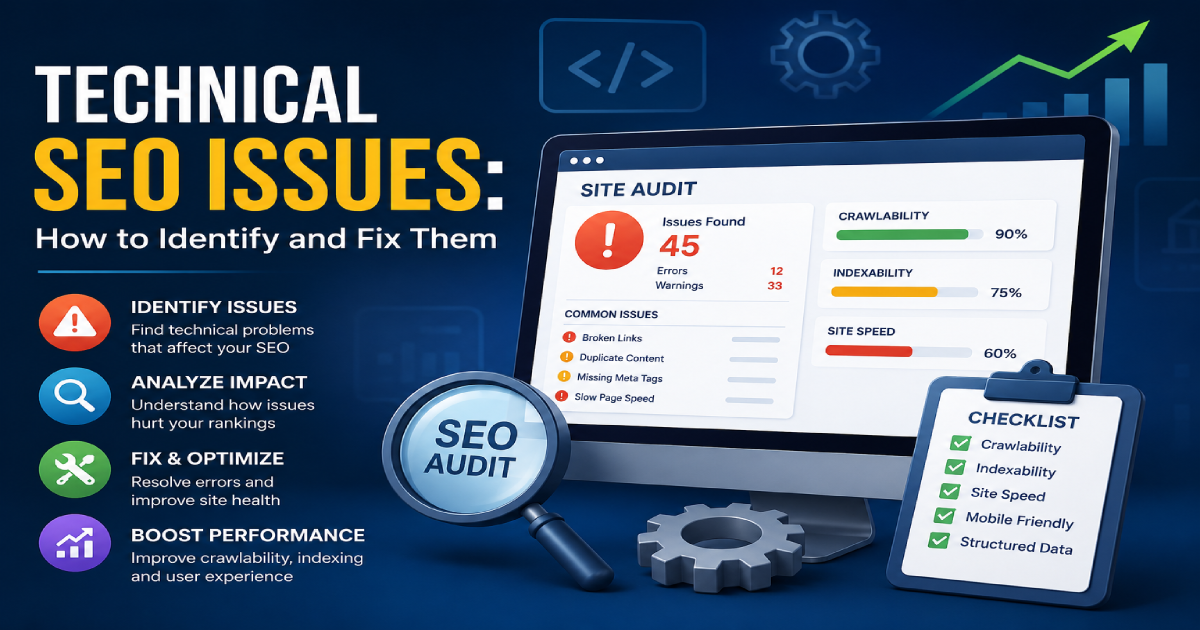
You’ve spent hours creating high-quality content, optimizing your on-page elements, and building backlinks. Yet your rankings are stagnant or declining, and organic traffic isn’t coming in. Often, the problem is hidden in your website’s backend architecture. Technical SEO issues quietly undermine search performance in ways that content and links can’t fix.
I’m Zohanuddin Shaikh, an SEO consultant based in Karachi, Pakistan, with 8 years of experience. Technical SEO is the foundation of your entire digital marketing strategy. It allows search engines to navigate, analyze, and index your website without difficulty. Without this foundation, everything from content creation to link building underperforms — no matter how good those efforts are.
This guide offers a comprehensive route. We’ll expose your site’s hidden problem areas, identify the most common and damaging technical challenges, and provide step-by-step instructions for resolving them. By the end, you’ll know how to build and maintain a technically sound, Google-friendly website.
What Are Technical SEO Issues?
Technical SEO issues are problems in a website’s infrastructure — crawling, indexing, site speed, mobile usability, and configuration — that prevent search engines from properly accessing, understanding, or ranking its content.
Unlike content or link-building problems, technical issues sit in the backend where they’re easy to miss. A site can have excellent content and strong backlinks yet still fail to rank because search engines can’t crawl it efficiently, can’t index key pages, or encounter configuration errors that block visibility.
Technical SEO issues generally fall into three categories:
- Crawlability — whether search engines can access your pages
- Indexability — whether they can store your pages in the index
- Page experience — whether pages load fast and work well on all devices
Addressing these three areas systematically is what separates a technically healthy site from one that quietly loses traffic.
Warning Signs Your Site Has Technical SEO Issues
Before running detailed diagnostics, learn to recognize the early warning signs. These symptoms often point to underlying technical problems.
Warning Sign |
What It Might Indicate |
|
Sudden traffic or ranking drop |
Accidental noindex tag, server downtime, or crawl block |
|
Slow page loading |
Bloated scripts, unoptimized images, poor hosting |
|
Slow or declining indexation |
Crawl or quality issues preventing indexing |
| Mobile usability errors |
Poor mobile experience hurting rankings |
| Crawl errors in Search Console |
Googlebot struggling to access content |
| Duplicate content |
Missing canonicals, parameter or protocol issues |
| Poor engagement metrics |
Slow speed or broken navigation frustrating users |
Sudden Traffic or Ranking Drop
An unexpected drop in traffic often signals a technical problem—like an inadvertent noindex tag or frequent server unavailability. If the drop isn’t seasonal or caused by an algorithm update, investigate immediately.
Slow Page Load
Slow websites hurt both user experience and rankings. Bloated scripts, unoptimized images, and poor hosting are common causes. Speed affects Google rankings, particularly on mobile devices.
Slow Indexation
If Google indexes fewer pages than your site contains, you’re losing visibility. Compare your indexed pages to your total using a site:yourdomain.com search. A large gap signals indexing problems worth investigating.
Crawlability Issues and How to Detect Them
For your site to rank, Googlebot must be able to access it easily. This process is called crawling. If Googlebot can’t crawl your pages, they can’t be indexed and will never appear in search results. Crawlability is the foundation of technical SEO.
Understanding Crawl Budget
Search engines allocate a limited amount of resources to crawl each website—this is known as the crawl budget. Maximizing this budget is critical for large websites with hundreds or thousands of pages. You want Googlebot focusing on your important, high-value pages instead of getting trapped in a maze of useless URLs, redirects, and error pages. For a complete process, see my crawl budget guide.
How to Detect Crawlability Problems
Start with the crawl data in Google Search Console. Navigate to Settings, then Crawl Stats. This report shows your site’s download sizes, average response times, and Googlebot requests over the previous 90 days. Sudden changes in response time or daily crawls can reveal problems. Use the “By response” breakdown to check whether Google is encountering server errors (5xx) or 404 errors.
For deeper analysis, server log files are the best tool. They track every server request, including Googlebot’s, revealing which pages are crawled, how often, and with what response codes. This analysis can show whether Googlebot is wasting crawl time on parameter URLs or outdated redirect chains.
Desktop crawlers like Screaming Frog and Sitebulb simulate how a search engine crawls your site. A thorough crawl can reveal 404 errors that block access, redirect chains that waste crawl budget and dilute link equity, orphan pages with no internal links, and pages buried too deep in the site structure.
How to Fix Crawlability Issues
- Fix broken links: Find 404 errors in your crawl report and repair broken internal links. Ensure all links point to current, live URLs. If a page was intentionally removed, redirect its old URL to the most relevant current page.
- Strengthen internal linking: Ensure your most important pages are frequently linked from other pages. Use clear, descriptive anchor text, and maintain a logical structure with breadcrumbs and an HTML sitemap so crawlers can navigate your hierarchy. See my internal linking SEO guide for more.
- Submit an XML sitemap: Include all URLs you want crawled and indexed. Submit it in Google Search Console and update it whenever you add new content.
- Manage URL parameters: Filtering and e-commerce systems can create hundreds of duplicate parameter URLs. Use canonical tags to specify the master version. See my faceted navigation SEO guide for parameter-heavy sites.
- Improve site speed: A faster server lets Googlebot crawl more pages in the same time, effectively increasing your crawl budget.
Indexing Issues and How to Resolve Them
Once a page is crawled, it must be indexed. Indexing is the process by which Google analyzes a page’s content and code and stores it in the Google Index. If a page isn’t in the index, it can’t rank for any search.
How to Check If Your Site Is Indexed
The Google Search Console Coverage report (also called Page Indexing) is the definitive tool. It shows the status of your URLs across four main states:
- Error: The page isn’t indexed due to a critical problem
- Valid with warnings: Indexed, but with an issue to review
- Valid: Successfully indexed
- Excluded: Left out of the index, intentionally or not—where many indexing problems hide
You can also use a site:yourdomain.com search for a quick estimate or check a specific page with site:yourdomain.com/your-page. If it doesn’t appear, it isn’t indexed.
Common Indexing Problems and Their Solutions
Issue |
What It Means |
How to Fix |
|
Excluded by ‘noindex’ tag |
A noindex meta tag is blocking indexing | Remove the noindex tag, then request indexing in GSC |
|
Blocked by robots.txt |
robots.txt is blocking crawler access | Remove the blocking “Disallow” rule and test with GSC |
|
Crawled – not indexed |
Google crawled but chose not to index, often due to thin content | Improve content quality and add internal links |
| Discovered – not indexed | Google knows the page exists but hasn’t crawled it |
Strengthen internal linking and site authority |
| Duplicate, different canonical | Google chose a different canonical than declared |
Fix canonical tags and internal links to align |
| Soft 404 | The page looks empty but returns “200 OK.” |
Add valuable content or return a proper 404/410 |
After resolving an indexing issue, use Google Search Console’s URL Inspection tool. Paste the URL to get a status report, then click “Request Indexing” to have Google re-evaluate the page. For a related cause of indexing delays, see my JavaScript rendering guide.
Mobile Usability and Core Web Vitals
With Google’s shift to mobile-first indexing, your site’s mobile-friendliness is now an important ranking factor. Two primary criteria assess this: mobile usability and Core Web Vitals.
Mobile Usability
Mobile usability refers to how well your site performs on mobile devices. Common problems send unfavorable signals to Google and hurt the user experience:
- Missing viewport configuration: Without it, mobile browsers display content at desktop width, forcing users to pinch and zoom
- Content wider than screen: Fixed-width CSS elements and large, non-responsive images force horizontal scrolling
- Clickable elements too close together: Cramped or tiny buttons and links cause accidental taps
- Text too small to read: Font sizes not suited for mobile force users to zoom
Google Search Console’s mobile usability reporting lists affected pages. In most cases, a responsive design fixed through CSS updates resolves these issues. Google’s Mobile-Friendly Test lets you check URLs instantly.
Core Web Vitals
Core Web Vitals measure responsiveness, interactivity, and visual stability — part of Google’s “page experience” signals.
Metric |
Measures |
Good Score |
Common Fixes |
|
LCP (Largest Contentful Paint) |
Loading performance | ≤ 2.5s | CDN, compress images, defer non-critical CSS |
| INP (Interaction to Next Paint) | Responsiveness | ≤ 200ms |
Reduce JS execution and use web workers |
| CLS (Cumulative Layout Shift) | Visual stability | ≤ 0.1 |
Set image/video dimensions, reserve space |
Note that INP replaced First Input Delay (FID) in 2024 as Google’s responsiveness metric. GSC’s Core Web Vitals report evaluates performance using real user data, while Google PageSpeed Insights provides lab data and specific recommendations. For a deeper look, see my Core Web Vitals guide.
Common Misconfigurations That Hurt Rankings
Some of the most damaging technical SEO issues come from simple misconfigurations — small lines of code in the wrong place that can severely impact visibility.
Incorrect robots.txt Implementation
The robots.txt file tells search engine crawlers which parts of your site they can and cannot access. A simple mistake here can de-index your entire website.
A disastrous example:
User-agent: *Disallow: /
This tells all search engines not to crawl any part of the site. It’s sometimes accidentally left in place after a site migration or when moving from a staging environment to a live server.
Blocking important resources is another major error. Developers may block CSS or JavaScript files to “save” crawl budget, but Google needs to render pages the way a user’s browser would. If it can’t access your CSS and JS, it can’t display the site properly, causing mobile usability and indexing problems.
Solution: Always double-check your robots.txt file. Ensure you’re not disallowing important directories, pages, or resource files. Use Google Search Console to validate your file and test whether specific URLs are blocked.
Misuse of noindex and nofollow Tags
These tags give page-specific instructions to crawlers. The noindex tag tells search engines not to include a page in their index — useful for thank-you pages, admin logins, or thin search results pages. But if accidentally placed on an important blog post or product page, that page disappears from search results.
The nofollow attribute tells search engines not to pass link equity through a link. While less damaging than noindex, a sitewide nofollow meta tag can block the flow of authority through your internal linking, harming your overall ranking potential.
Solution: Use a crawler like Screaming Frog to identify which pages have noindex or nofollow directives, and audit the list carefully to ensure these tags are applied only where intended.
Poor Canonical Tag Implementation
The canonical tag solves duplicate content issues by telling search engines which version of a page is the master copy. Common mistakes include pointing the canonical to the wrong page, having multiple canonical tags on one page (which confuses crawlers), and using relative instead of absolute URLs.
Solution: During a site crawl, check the canonical link element for every page. Ensure each indexable page has a self-referencing canonical (or correctly points to the master version if it’s a duplicate), with no conflicting signals. For a complete process, see my canonicalization SEO guide.
Essential Technical SEO Tools
To diagnose and fix technical SEO issues effectively, you need the right tools. Three stand out as essential.
Google Search Console (Free)
A free service from Google that helps you monitor and troubleshoot your site’s presence in search results. It’s the most critical tool because the data comes directly from Google. Key uses include the Performance report (rankings, impressions, clicks, and CTR); the URL Inspection tool (index status and indexing requests); the Coverage report (the primary source on indexing problems); sitemap submission; mobile usability and Core Web Vitals reports; and crawl stats.
Screaming Frog SEO Spider (Freemium)
A powerful desktop crawler (free version crawls up to 500 URLs) that spiders your site’s links, images, CSS, and scripts like a search engine. It excels at finding broken links, analyzing titles and meta descriptions, auditing redirects, discovering duplicate content, reviewing directives (noindex, nofollow, canonical), and generating XML sitemaps.
Sitebulb (Paid)
A website auditing tool similar to Screaming Frog but with more context and prioritized recommendations. It’s known for a user-friendly design and rich, actionable reports—providing prioritized issue lists with explanations, helpful visualizations of site structure, in-depth audits across 300+ checks, crawl comparisons over time, and professional PDF reports.
While Google Search Console is non-negotiable, choosing between Screaming Frog and Sitebulb often comes down to preference. Screaming Frog is the industry-standard data workhorse; Sitebulb excels at context, guidance, and reporting.
A Complete Technical SEO Audit Checklist
Technical SEO can feel daunting. Use this checklist to systematically assess your site and cover all the essentials.
Foundation and Crawlability
- Verify Google Search Console is set up correctly (check HTTP vs HTTPS and www vs non-www)
- Test robots.txt—ensure you haven’t blocked vital CSS/JS or resources
- Submit and verify your XML sitemap (auto-updating, error-free)
- Crawl your site with Screaming Frog or Sitebulb
- Fix all 4xx errors and repair broken internal links
- Address 5xx server errors promptly via hosting or development
- Consolidate redirect chains into single 301s
Indexing and Content
- Review the GSC Coverage report for unexpected Error or Excluded pages
- Audit noindex tags — confirm they’re only where intended
- Ensure all indexable pages have proper self-referencing canonicals
- Identify and improve thin or duplicate content
Page Experience
- Fix mobile usability issues (“Content wider than screen”)
- Review Core Web Vitals for “Poor” or “Needs Improvement” URLs
- Test key pages with PageSpeed Insights and apply recommendations
- Verify HTTPS is properly implemented sitewide (no mixed content)
Ongoing Monitoring
- Crawl your site weekly or quarterly to catch new issues
- Check GSC reports (Coverage, mobile usability, and Core Web Vitals) regularly
FAQs
1. How often should I do a technical SEO audit?
For most websites, perform a comprehensive technical SEO audit every three to six months. Large or frequently updated sites, like major e-commerce businesses, should audit at least monthly. In addition, monitor Google Search Console weekly to catch new or serious errors early. Regular auditing prevents small issues from accumulating into major problems.
2. Do I need a developer to fix technical SEO issues?
It depends on the issue. You can fix many common problems yourself using a CMS or plugins—broken links, meta tags, and redirects, for example. More sophisticated issues like server response failures, code optimization, or advanced robots.txt configurations will usually require developer assistance. Start with what you can manage, and involve a developer for backend or code-level fixes.
3. Is technical SEO a one-time solution?
No, technical SEO requires ongoing work. Websites constantly evolve as you add pages, plugins, and code updates — and these changes can introduce new issues without your knowledge. To stay ahead, audit and maintain your site regularly rather than treating technical SEO as a one-time fix.
4. Does technical SEO matter if I use Squarespace or Shopify?
Yes. While these platforms handle many technical tasks like hosting and sitemap generation, you can still encounter problems—poor site structure, slow-loading images, duplicate content from product variants, and improper tag use remain common issues. Even without full backend control, you should actively manage what you can.
5. Which technical SEO issue should I fix first?
Prioritize indexability above everything else. Nothing else matters if robots.txt or noindex tags prevent search engines from crawling or indexing your content. If your pages aren’t accessible to search engines, they can’t rank—no matter how good your content or how fast your site. Once indexability is confirmed, move on to speed and mobile experience.
6. What’s the difference between crawlability and indexability?
Crawlability is whether search engines can access and read your pages. Indexability is whether they can store those pages in the search index. A page can be crawlable but not indexed (for example, if it has a noindex tag), or it may not be crawlable at all. Both must work for a page to appear in search results.
7. Can technical SEO issues cause a manual penalty?
Technical issues themselves usually don’t trigger manual penalties, but they can severely limit visibility by preventing crawling and indexing. However, some technical problems—like cloaking or serving different content to crawlers than users—do violate Google’s guidelines and can result in manual actions. Most technical issues cause gradual visibility loss rather than penalties.
8. How do I know if my fixes are working?
Monitor Google Search Console after making changes. Watch for improvements in the Coverage report (more valid pages, fewer errors), the Crawl Stats report (efficient crawling), and the Performance report (recovering impressions and clicks). Use the URL inspection tool to confirm specific pages are indexed. Results appear gradually, so track trends over weeks rather than expecting instant changes.
Final Thoughts
Technical SEO can seem like a daunting field of code, crawlers, and complex data. But by breaking it down into manageable components—crawlability, indexability, and page experience—you can uncover and repair the flaws hurting your efforts. Attracting organic visitors and achieving business goals is inextricably tied to your website’s technical foundation.
You can now start taking control of your site’s performance using the checklists and tools in this guide. Start with Google Search Console, using data straight from Google. Then use a website crawler to determine what else needs attention. Before addressing lower-priority issues, ensure your most critical pages can be crawled and indexed — that foundation comes first. From there, optimize for speed and mobile devices.
In my experience, technical SEO is exactly the kind of work that compounds. Investing in your website’s technical backbone does more than fix current problems — it builds the framework for long-term growth, better search performance, and overall resilience. Don’t let technical issues quietly derail your efforts. Run an audit, work through the checklist, and build a site that both users and search engines can rely on.
For questions about diagnosing technical SEO issues on your own site, feel free to reach out through my Contact page.
For more SEO guides, browse Search Engine Realm.
Last Updated: July 2026